
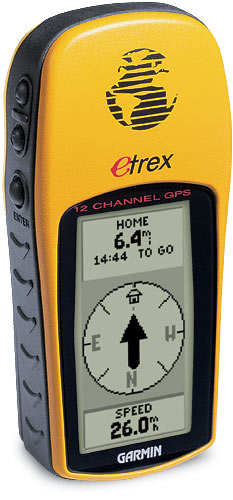
Brief: To download a GPS Track and points from a Garmin GPS unit and create a Googlemaps Polyline/Encoded Polyline.
The process is straightforward if you follow the following steps:
1) Download from GPS.
2) Convert files to csv format.
2) Convert csv to Polyline.
Equipment:
Garmin EtreX GPS unit.
Serial port adapter.
OziExplorer.
1) Download from GPS.
Software: OziExplorer.
Visit and download OziExplorer software.
Connect GPS unit to desktops’ serial port. Ensure GPS Setup/Interface is set GARMIN.
From the OziExplorer Trial version.
- File/Load from File/Load Map File/World.map
- Garmin/Get Track from GPS
Once the waypoints are downloaded.
- Save/Save to File/Save Track to File
2) Convert to CSV
Software: GPS BABEL
Set the following:
- Type of GPS data you want to convert: TRACK
- Input file format: OziExplorer[W][T][R]
- Output format: Comma seperated values [W]
Upload your file.
The conversion will display as a web page. You will need to save this as a csv.
- Open Notepad
- View source – CTRL+A/CTRL+C/CTRL+V from Webpage to Notepad.
- File/Save As
3) Create Polyline
Software: GPS Visualiser
- Make a Map: Google Map
- File #1: Select the file you have just converted.
- Force points to be this type: Trackpoints
Draw the Map.