Best tracks – Moraca Valley – Podgorica -> Rasko

The Moraca Valley running from the Moraca river just out of Podgorica up to the small village, Rasko.

Passes through Moraca village where there’s a steam train and monastery and of course, river below.

Best drive in Serbia & Monetenegro
Towering granite spires, deep forest and plummeting river canyon most of the way.

Points to watch: Trucks approaching on the other side of the road.
Tunnels have overhang; Truck drivers work around is to approach on your side of the road.

KML (start): – 42.473850, 19.302940 Podgorica to
KML (finish): – 42.817930, 19.402110 Rasko

Worst tracks – Zabljak -> Niksic

From Durmitor national park over to Niksic.

Worst roads in Europe
Marked on the map as a major route, this homebound route turned out to be the architypal Montenegrin country thoroughfare.
Windey, dangerous, nutters approaching in the other direction, nutters approaching from behind.
Single track for the duration, about 20 miles. Sheer drops denoted by flowers peppered intermittently on either side.

Scenery’s good, if you make it home.

KML (start):– 43.15443, 19.12115 Zabljak to
KML (finish):– 42.902470, 18.962960 Niksic

Creating a KMZ Polyline using Google Earth Pro

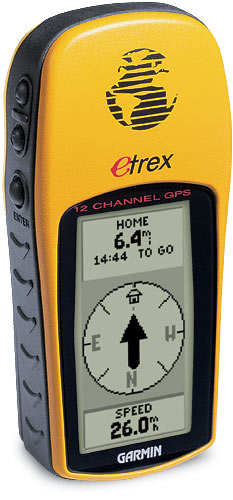
Brief: To download a GPS Track from a Garmin E-Trex GPS unit and create a Google Earth Polyline/Encoded Polyline KMZ.

Equipment:
Garmin EtreX GPS unit.
Serial port adapter.
Google Earth Pro.

  • Download Google Earth Pro – 7 Day free trial
  • Install/boot
  • TOOLS/GPS – Select your unit; In my case the GPS GARMIN.
  • IMPORT options. In my case I’m only interested in the polyline or TRACK information. You have options to import each placemark, also to annul altitude readings etc.
  • Plug in the GPS and turn it on.
  • A message appears – Importing data from COM1. When you’re done, a message appears 207 Active logs imported.
  • TRACK is displayed in the Temporary Places folder.
  • In the top left corner there’s a little marker with a CLOCK alongside.
    In the CLOCK, select the timerange you’re interested in presenting data from. In my case 1st Sept to 21st Sept.
  • Once the CLOCK is set the software will begin displaying the TRACK that lies within that timeframe.
  • This next part is manual. Select TRACK parts, (google calls them ACTIVE LOGS), which are not part of your timeframe and DELETE them.
  • When you’ve pared off the bogus ACTIVE LOG points and you’re happy with your track, you’re ready to save: TRACK/SAVE AS/KMZ.

IF YOU DON’T DELETE bogus active logs the software becomes confused when you try to do any kind of visualisation. So be sure to do that smartening up yourself.

Welcome to my world..
This is now your very own track you can open in any Google Earth pro, Google Maps or otherwise.
You can view it save it to your places and e-mail it to your friends.